What's new in the 8x8 Admin Console July 2026 release?
The July release of the 8x8 Admin Console introduces the following features and enhancements:
- New administrator control: Control for opening support cases
- Set up CRM Integration custom field mapping
- SMS opt-out enforcement
- Manage the opt-out list
New administrator control: Control for opening support cases
Administrators can now control whether users can open support cases directly from 8x8 Work.
A new setting called Allow users to open support cases is available in the Work Apps Settings section. This setting is on by default, and users can use the Open support case option from the Success Center in both 8x8 Work for Desktop and Web.
To learn about how to manage settings for 8x8 Work applications, see Configure Work Apps Settings.
Set up CRM Integration custom field mapping
You can now map 8x8 interaction log data to specific fields in your CRM, giving you more consistent data capture and making searching and reporting easier. By aligning 8x8 data with your organization's CRM structure, you can ensure that critical interaction details are stored where your team needs them.
To access the CRM Field mapping:
- Log in to 8x8 Admin Console.
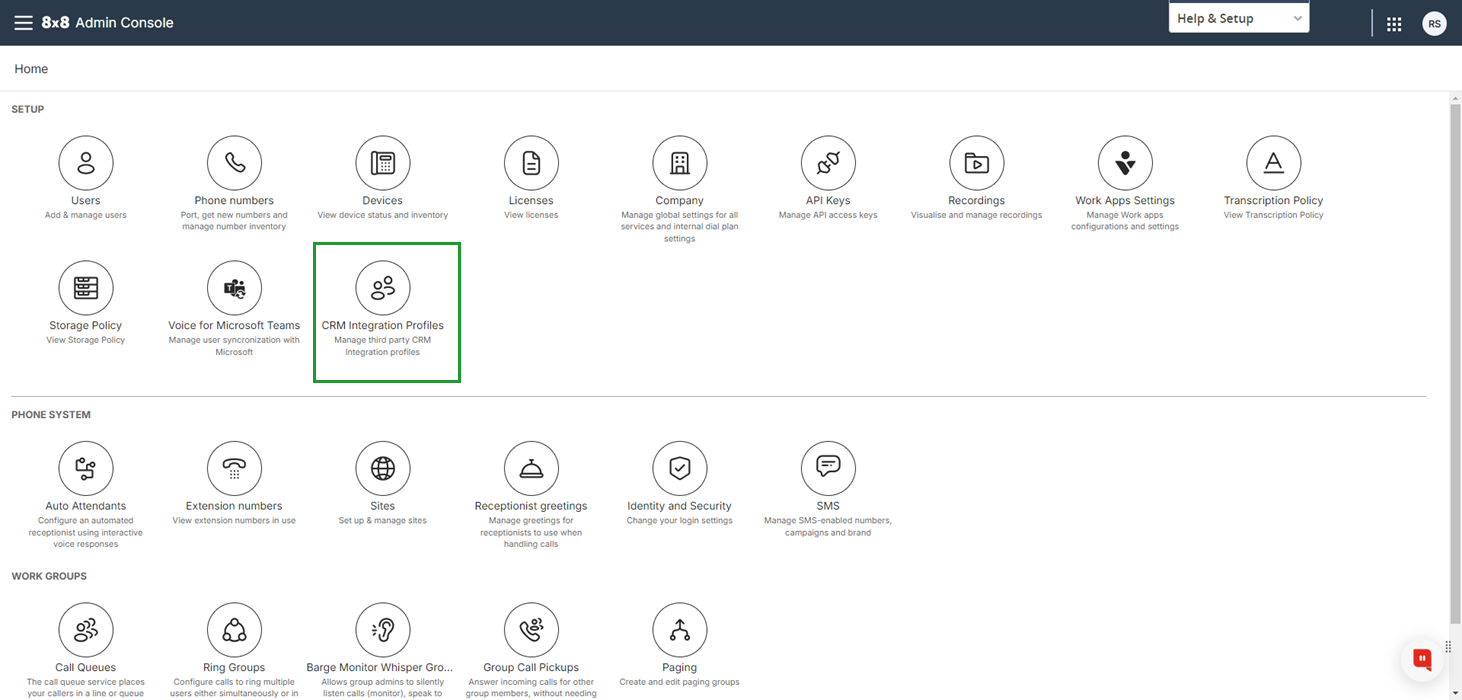
- From the Home page, select CRM Integration Profiles.
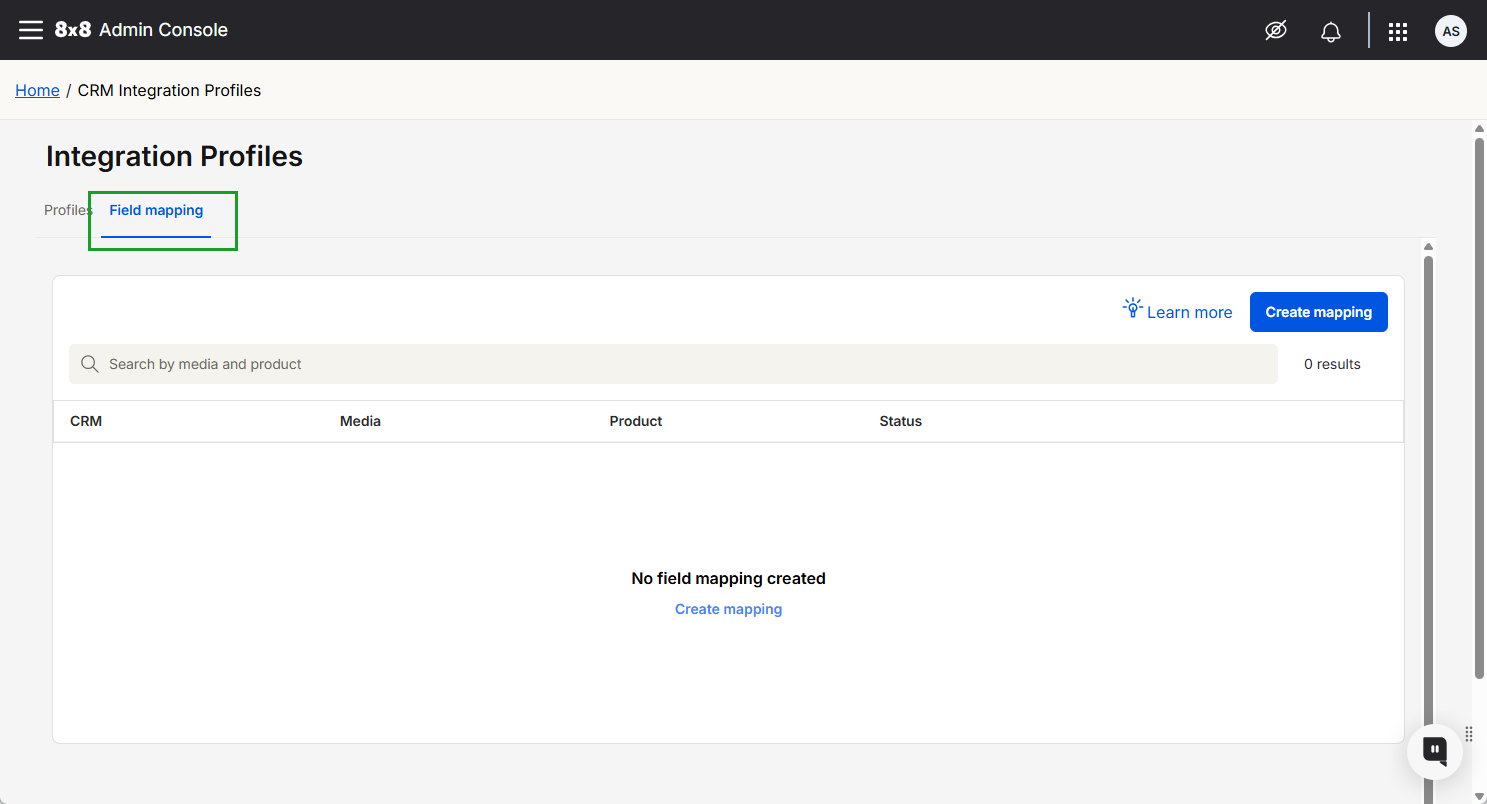
- Select the Field mapping tab.
Limitations
- Salesforce is currently the only supported CRM platform.
- CRM field mapping is not supported for customers with an 8x8 professional service remix or shareable remix.
- Only the Phone media is supported.
- Only the Task object is supported.
- All available interaction log data is also added to the Comments field in Salesforce, in addition to any field mapping rules you configure.
Requirements
- Admin access to 8x8 Admin Console.
- Admin access to your third-party system.
Prerequisites
You must create any custom fields in Salesforce before mapping 8x8 interaction data to them.
To learn more, see Set up CRM integration custom field mapping.
SMS opt-out enforcement
8x8 now automatically manages SMS opt-out compliance for UC SMS in the United States and Canada. When you enable this feature, 8x8 handles opt-out and opt-in requests on your behalf, so your team no longer needs to track them manually.
This feature supports compliance with TCPA and carrier requirements for US and Canada SMS campaigns.
Benefits
- Automatic opt-out compliance. 8x8 enforces SMS opt-out requests for you, so your users no longer need to track them in a separate tool or database.
- Reduced manual effort. Configured keywords add and remove numbers from the opt-out list automatically, without action from your 8x8 Work users.
- Company-wide consistency. The opt-out list is shared across your company, so a number that opts out is blocked for every 8x8 Work user.
How it works
Campaign administrators must obtain explicit consent before sending campaign text messages. Recipients can opt out at any time by texting a trigger word such as STOP or UNSUBSCRIBE, or by providing verbal notice. Administrators are required to honour these requests.
Note: This feature applies to UC SMS only, for numbers using campaigns in North America.
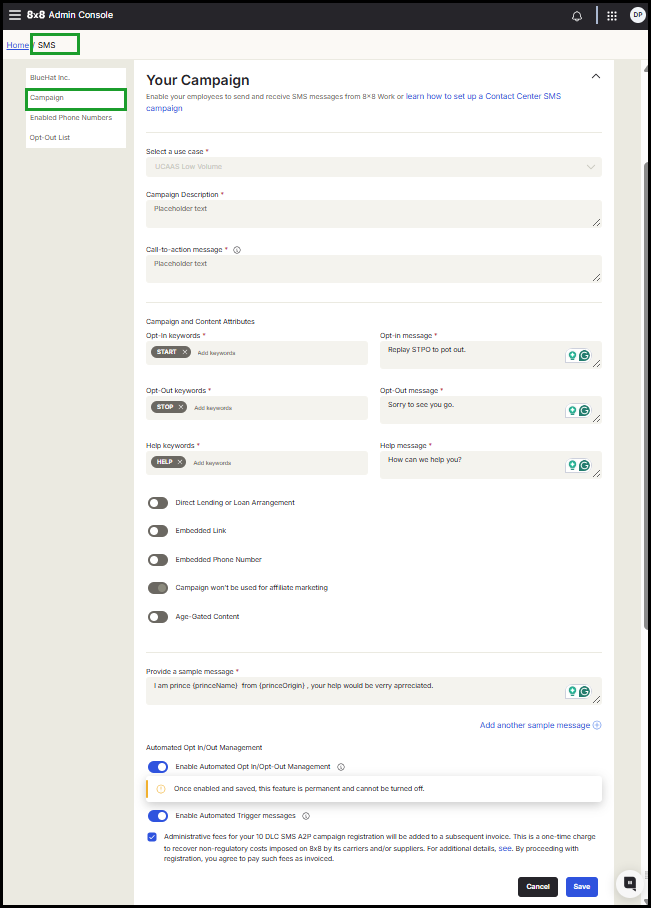
 Keyword configuration
Opt-out and opt-in keywords are defined during SMS campaign registration. You can update this word list at any time.
You can also add custom keywords. If a recipient texts one of your configured keywords, 8x8 adds or removes their number from the opt-out list automatically.
Notes:
- Include standard default keywords such as STOP, UNSUBSCRIBE, CANCEL, and QUIT.
- The trigger word must be sent as a standalone message. Keywords embedded in a sentence, such as "Can you stop calling me?", will not activate the opt-out action.
Keyword reference
|
Keyword type |
Behavior |
Default/recommended keywords |
|---|---|---|
| Opt-out | Blocks recipients who opted out of a campaign from receiving subsequent SMS campaign messages. This block stays active until they choose to opt back in. | STOP, UNSUBSCRIBE, CANCEL, END, QUIT |
| Opt-in | Enables users to join the campaign and receive SMS campaign messages. If a user has previously opted out, sending the opt-in keyword allows them to receive your messages again. | START, UNSTOP, YES, SUBSCRIBE |
| Help | Sends your configured help response. Does not affect opt-out status. Works for opted-out numbers. | HELP, INFO |
Enable automated opt-out enforcement
After you configure opt-in/out keywords and automated response messages for an SMS campaign in 8x8 Admin Console, you can activate Enable Automated Opt In/Out Management to enforce compliance.
To automatically block outbound messages to numbers that have opted out via SMS or are on the 8x8 Admin Console opt-out list:
- Log in to 8x8 Admin Console.
- From the menu, navigate to SMS > Campaign.
- Select the Enable Automated Opt In/Opt-Out Management checkbox.
- Click Save.
Important! Once enabled, this setting is permanent and cannot be turned off in 8x8 Admin Console. To disable it, open a ticket with 8x8 Support.
Note: This option is enabled by default when creating a new campaign. You can turn it off during the setup process.
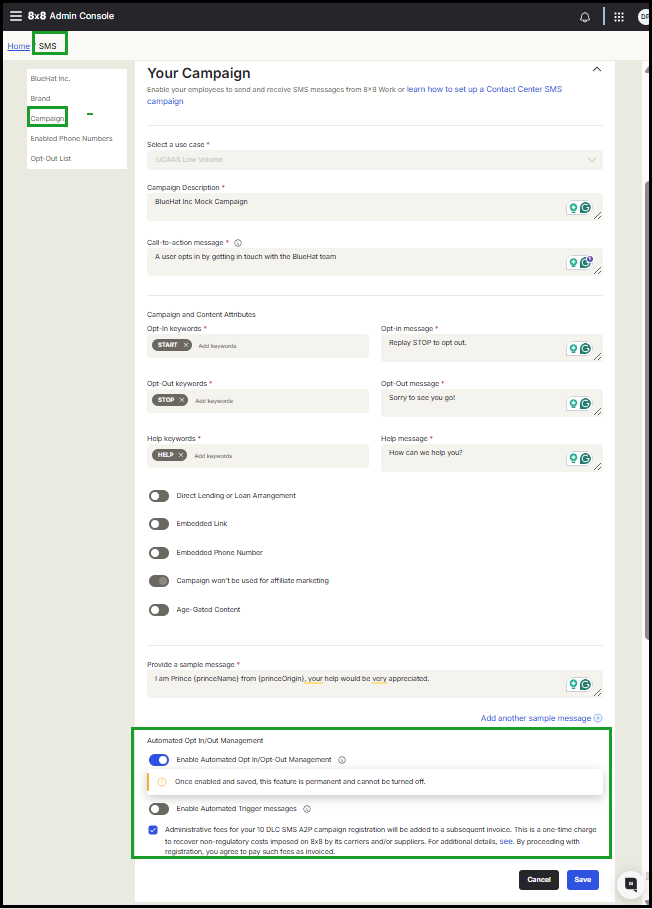
Enable automated trigger messages
You can choose whether 8x8 sends configured response messages automatically.
- When the Enable Automated Trigger messages checkbox is enabled, 8x8 sends your configured opt-in, opt-out, and help responses automatically. Automated responses count as SMS messages and are billed accordingly.
- WWhen the Enable Automated Trigger messages checkbox is disabled, opt-out enforcement still works, but your users send responses themselves.
Note: Help keywords return your configured help response only. They do not add or remove a number from the opt-out list.
To turn on automated responses:
- Log in to 8x8 Admin Console.
- From the menu, navigate to SMS > Campaign.
- Select the Enable Automated Trigger messages checkbox.
- Click Save.
Note: The Enable Automated Trigger messages checkbox is only available when the Enable Automated Opt In/Opt-Out Management checkbox is active.
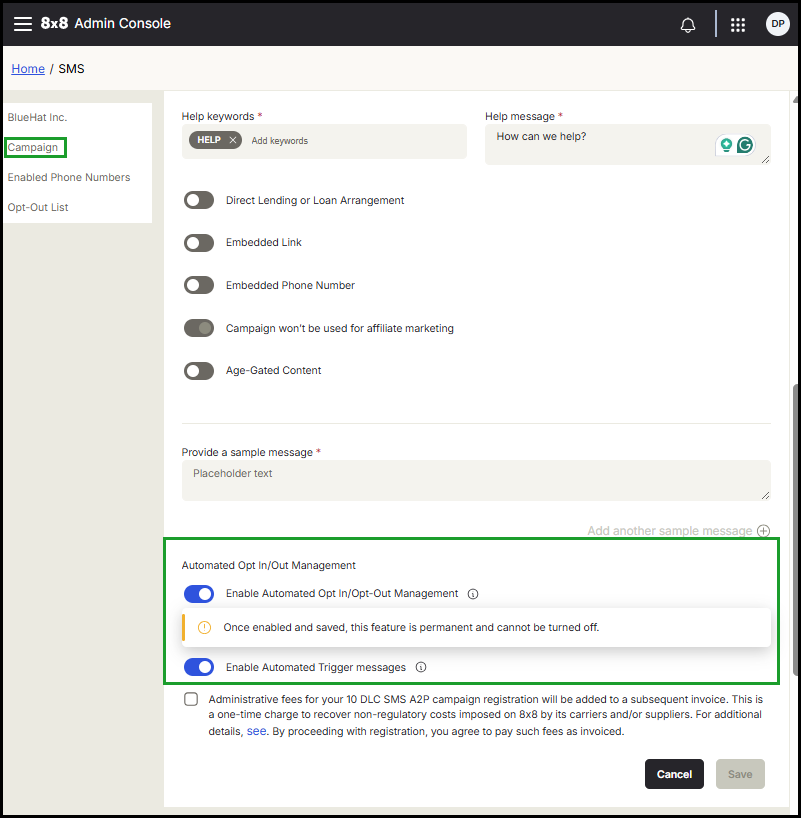
To learn more, see SMS registration: Brand and campaign registration > Step2. Campaign registration.
Manage the opt-out list
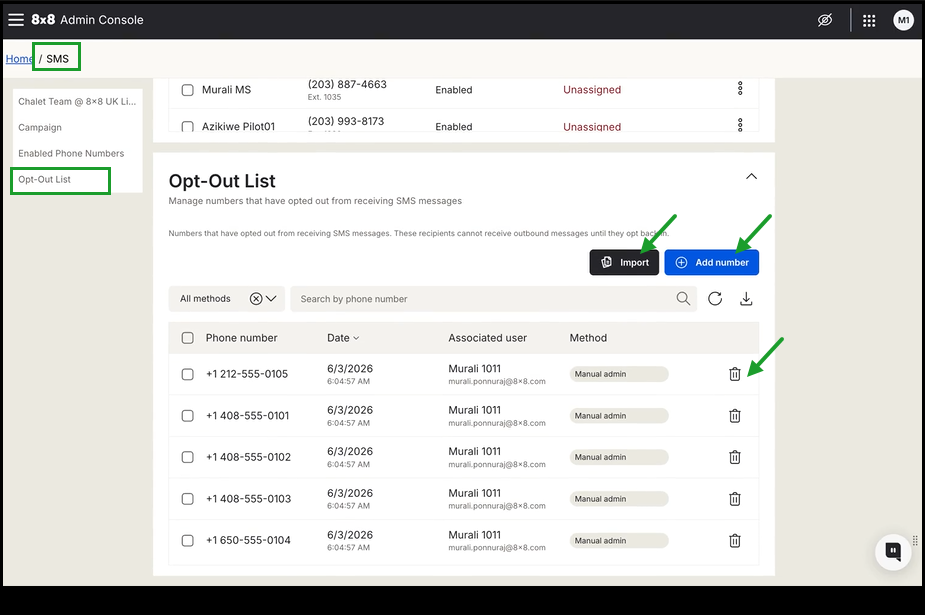
From the 8x8 Admin Console SMS page, you can manage the shared opt-out list for UC SMS. Available actions include:
- View numbers that are currently opted out.
- Add one or more numbers manually, separated by commas, and include a note for context.
- Import numbers in bulk from a CSV file using the provided template.
- Remove numbers.
- Export the full list to a CSV file.
- Search for any phone number in the list.
- Filter opted-out numbers by how they were added.
Numbers are added to the opt-out list in one of two ways:
- An administrator adds them manually
- A recipient texts one of the configured opt-out keywords.
Note: This list applies to UC SMS only. It is not shared with 8x8 Contact Center or CPaaS.
To learn more, see Manage the Opt-Out List.
What's new in the 8x8 Admin Console June 2026 release?
The June release of the 8x8 Admin Console introduces the following features and enhancements:
- Contact Center audit events in 8x8 Admin Console
- Ability to assign groups to a CRM integration profile
Contact Center audit events in 8x8 Admin Console
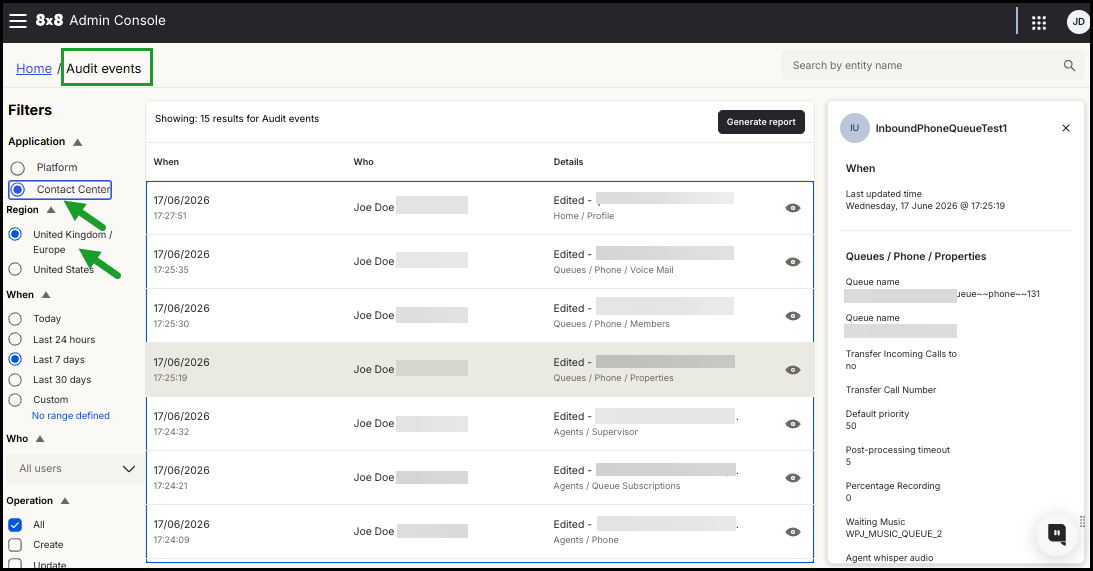
You can now view administrative changes made in 8x8 Admin Console and 8x8 Configuration Manager in the Audit events section of the 8x8 Admin Console, from a single dashboard.
You now have direct, self-service access to complete Contact Center (CC) audit logs through the existing audit viewer in 8x8 Admin Console .
Previously, visibility into Contact Center admin operations required submitting support tickets and waiting for manual log analysis. With this update, you can independently track and review these changes in real time.
Benefits
- Improved visibility. Access 8x8 Contact Center admin activity without relying on support tickets.
- Faster troubleshooting. Identify and investigate issues quickly using real-time audit data.
- Centralized monitoring. View Unified Communications (UC) platform and Contact Center (CC) audit events in a single interface.
- Operational transparency. Understand configuration changes and their impact across your environment.
Features
- View audit events for 8x8 Contact Center configuration changes within the 8x8 Admin Console.
- Filter audit events by Unified Communications (UC) platform or Contact Center (CC).
- Access audit data across regions for CC events in multi-region environments.
- Review detailed event information, including the resulting state of affected entities.
- Track actions such as user updates, queue changes, channel configuration, and more.
The following image shows Contact Center audit events filtered by region and date in the 8x8 Admin Console.
To learn more, see Audit events.
Ability to assign groups to a CRM integration profile
You can now assign one or more groups to a CRM integration profile. Every member of an assigned group automatically inherits the profile's integration settings, permissions, and configurations, making it easier to scale access as your teams grow or change.
To assign groups to an existing integration profile:
- From the 8x8 Admin Console Home page, select Integration Profiles.
- Hover over a profile, and click the Manage users
 icon.
icon. - Click the Groups tab from the top of the page.
- Click Assign groups.
- Select the groups from the list or use the search bar to find a group.
- Click Assign.
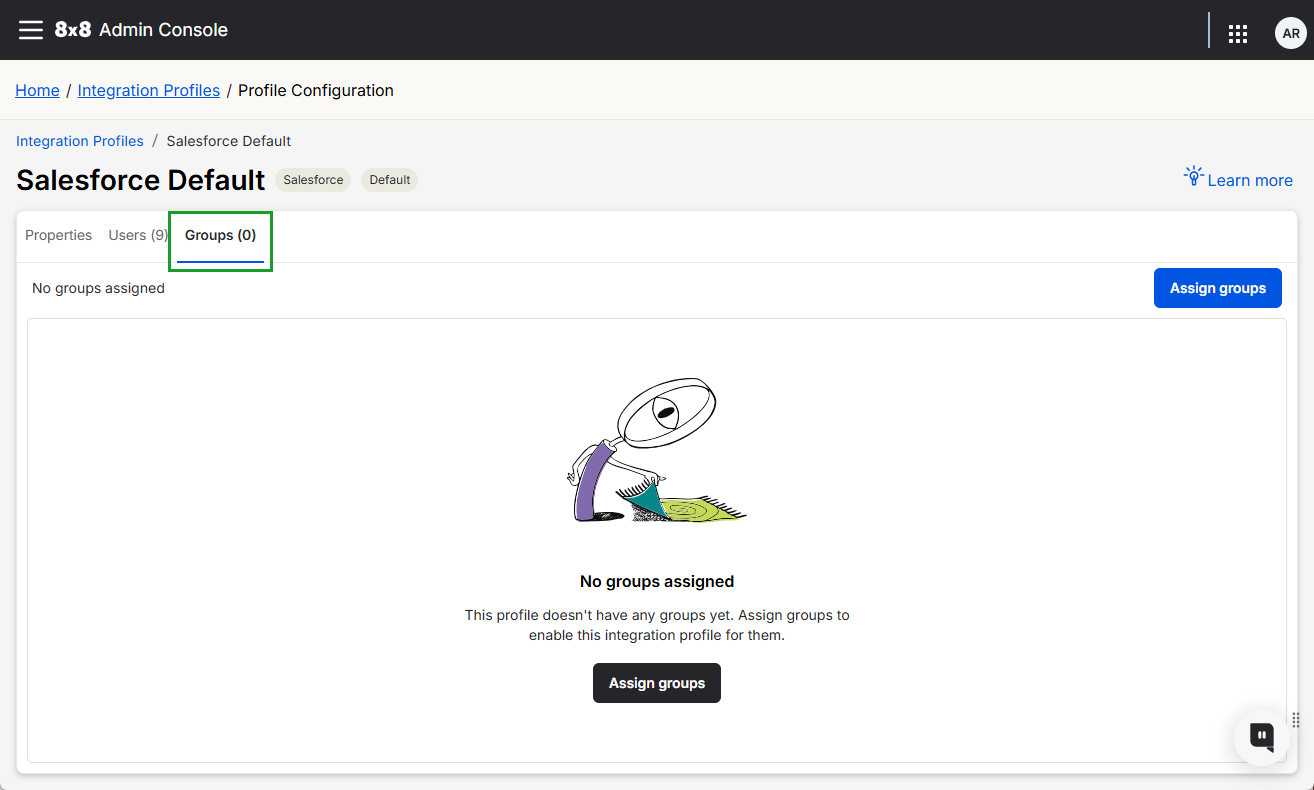
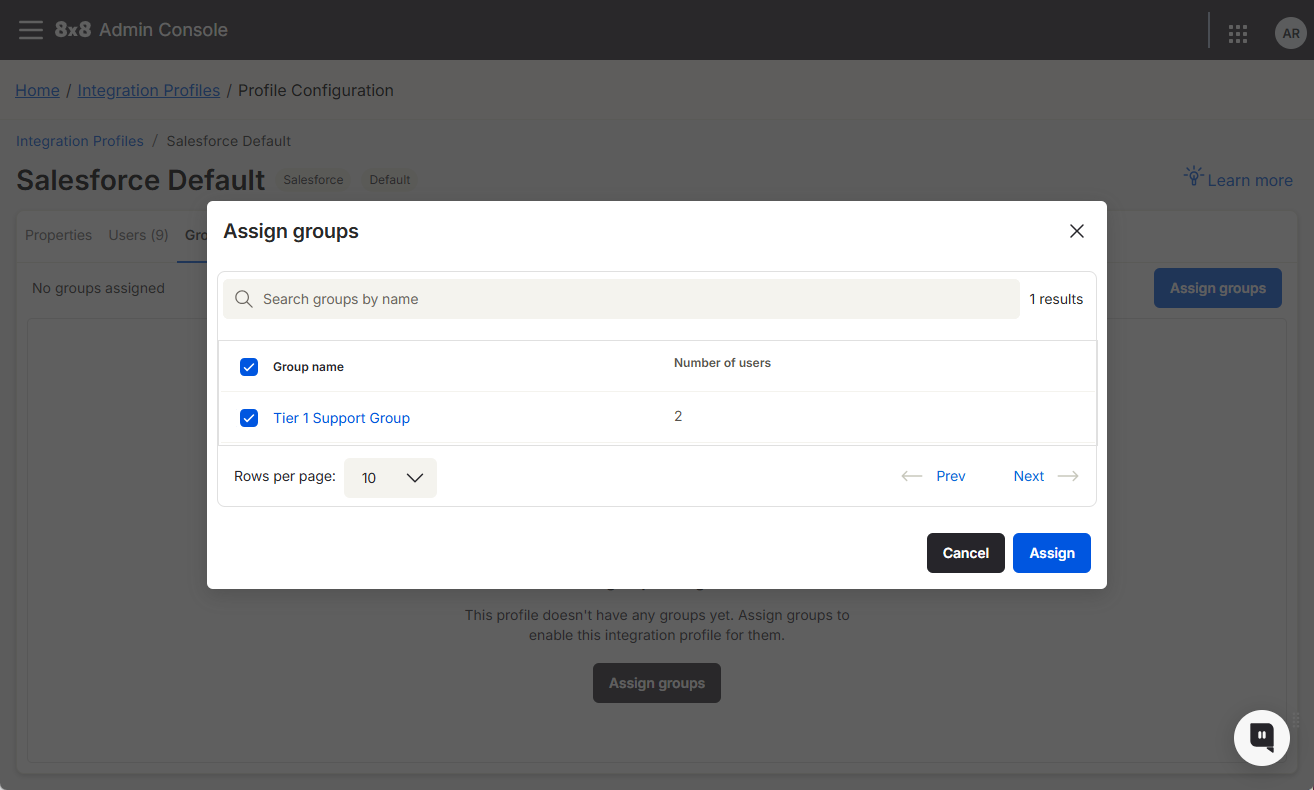
The Groups tab lists all groups assigned to the CRM integration profile.
For more information, see how to set up CRM integration profiles.
What's new in the 8x8 Admin Console May 2026 release?
In May release of the 8x8 Admin Console, we have introduced the following enhancement:
- New administration controls: for 8x8 Work for Mobile and 8x8 Work for Managed devices (Android)
- New administrator control: Sync other Google contacts in 8x8 Work apps
New administration controls for 8x8 Work for Mobile and 8x8 Work for Managed devices (Android)
Administrators now have greater control over directory search behavior and ring group availability on Android mobile devices, thanks to two new mobile settings in Work App Settings.
Benefits
- Reduced misdials across sites: Search results are grouped by your assigned site first, so you can identify the correct contact before placing a call.
- Clearer search context: Each result displays the site name and extension number (where available), providing you with the necessary details to distinguish contacts at different locations.
- Consistent ring group availability: Administrators can prevent users from logging out of assigned ring groups on mobile, ensuring calls are routed correctly, and team availability is maintained.
Site-specific search filtering groups company directory
Administrators can enable the Prioritize Site-Specific Filtering on Search setting for mobile devices in Work App Settings to show local results first and other sites in a separate section. ensuring matches from your assigned site are displayed at the top. Results from other organization sites appear in a separate section.
This also triggers a confirmation prompt when calling auto attendants, call queues, or ring groups at different sites.
The Prioritize Site-Specific Filtering on Search setting for mobile devices groups company directory search results by site, ensuring matches from your assigned site are displayed at the top. Results from other organization sites appear in a separate section. Additionally, if you try to call an auto attendant, call queue, or ring group at a different site, a confirmation dialog appears before the call proceeds.
To learn more, see Configure Work Apps Settings: Customize default values for 8x8 Work apps.
Ring group login and logout control
Administrators can toggle the Prevent users from logging out of their assigned ring groups setting for mobile platforms in the Work Apps Settings section. Activating this setting for a particular profile policy removes the Login/Logout toggle for ring groups in the mobile app, ensuring that team members remain continuously reachable across all their assigned groups.
Both settings apply to 8x8 Work for Managed Devices for Android 12.6.4 and later.
To learn more, see
Configure Work Apps Settings: Customize default values for 8x8 Work apps
Configure Work Apps Settings: Configure ring group logout prevention in mobile apps
New administrator control: Sync other Google contacts in 8x8 Work apps
Administrators can now control whether users can sync both personal and shared Google contacts with 8x8 Work apps. When disabled, only personal Google contacts are synced.
Benefits
- Cleaner contact lists: Control which Google contacts sync to reduce clutter and improve usability.
- More precise sync control: Enable or disable syncing of Other Contacts from Google.
Features
- Admin setting: Configure the Sync Other Google Contacts setting in 8x8 Admin Console, under Work Apps Settings > Contatcs.
- Flexible sync behavior: Enable users to sync only their personal Google contacts, or sync both their personal and other Google contacts (such as the company directory and contacts from Gmail, Calendar, and other shared sources) with 8x8 Work apps.
- Default configuration: The setting is disabled by default for a cleaner initial experience.
- Automatic updates: Contact lists refresh at login to reflect the current setting.
To learn about how to manage settings for 8x8 Work applications, see Configure Work Apps Settings.
What's new?
Important! To ensure security standards, 8x8 apps now enforce multi-factor authentication (MFA) for all 8x8 administrator accounts. For details about MFA for admins, read Multi-Factor Authentication (MFA).
Recently, we introduced 8x8 Mobile Admin, a new solution designed for 8x8 Work admins to manage basic admin activities using the 8x8 Work for Mobile app. This new capability offers quick resolutions via the mobile app as well as easy and quick access to a restricted set of top level daily admin tasks (quick updates or changes on demand).
For details about 8x8 Mobile Admin, click here.
Availability
8x8 Mobile Admin is available on:
- iOS mobile devices
- Android mobile devices
|
|
To learn more about 8x8 Mobile Admin, check out our detailed help.
See our content for all Previous releases.


