Set up CRM Integration custom field mapping
CRM field mapping lets you map 8x8 interaction log data to specific fields in the interaction log. This creates more consistent data capture and makes searching and reporting easier. By aligning 8x8 data with your organization's CRM structure, you can ensure that critical interaction details are stored where your team needs them.
Limitations
- Salesforce is currently the only supported CRM platform.
- CRM field mapping is not supported for customers with an 8x8 professional service remix or shareable remix.
- Only the Phone media is supported.
- Only the Task object is supported.
- All available interaction log data is also added to the Comments field in Salesforce, in addition to any field mapping rules you configure.
Requirements
- Admin access to 8x8 Admin Console.
- Admin access to your third-party system.
Prerequisites
You must create any custom fields in Salesforce before mapping 8x8 interaction data to them.
Available interaction log data
The following interaction log data is available to map to your CRM.
Interaction log data for 8x8 Work and 8x8 Engage
The following interaction log data is available to map for 8x8 Work and 8x8 Engage phone interactions.
| Data | Type of information stored | Populated when set as | |||
|---|---|---|---|---|---|
| Offered | Connected | Complete | Terminated | ||
| Activity Date | The date and time the call was answered. | Offered | Connected | Complete | Terminated |
| aid Fields | Additional field data. Varies depending on the CRM used. | Terminated | Terminated | Terminated | Terminated |
| Call answered at | The date and time the call was answered. | Offered | Connected | Complete | Terminated |
| Call ended at | The date and time the call ended. | Terminated | Terminated | Terminated | Terminated |
| Call Id | The ID of the interaction. | Offered | Connected | Complete | Terminated |
| Call recording | The URL to the call recording download. | Terminated | Terminated | Terminated | Terminated |
| Caller Name | The name of the matching CRM record (if available). | Offered | Connected | Complete | Terminated |
| Caller phone | The phone number of the incoming or outgoing interaction. | Offered | Connected | Complete | Terminated |
| Caller record ID | The unique ID of the matched Salesforce record. | Offered | Connected | Complete | Terminated |
| Direction | The direction of the interaction (inbound or outbound). | Offered | Connected | Complete | Terminated |
| DirectionNextGen | The direction of the interaction (inbound or outbound). This is the same as Direction data. | Offered | Connected | Complete | Terminated |
| Duration of the call | The duration of the call in hours, minutes, and seconds. | Terminated | Terminated | Terminated | Terminated |
| PBX | 8x8 Work or 8x8 Engage PBX of the user who handled the interaction. | Offered | Connected | Complete | Terminated |
| Status | Always “Completed” | Offered | Connected | Complete | Terminated |
| Subject | The subject of the Salesforce Task in the format “Call with [Number].” | Offered | Connected | Complete | Terminated |
| User Name | 8x8 username of the agent who handled the interaction. | Offered | Connected | Complete | Terminated |
Interaction log data for 8x8 Contact Center
The following interaction log data is available to map for 8x8 Contact Center phone interactions
| Data | Type of information stored | Populated when set as | |||
|---|---|---|---|---|---|
| Offered | Connected | Complete | Terminated | ||
| Activity Date | The date and time the call was answered. | Offered | Connected | Complete | Terminated |
| Agent | The first and last name of the agent who handled the interaction. | Offered | Connected | Complete | Terminated |
| AID Fields | Additional field data. Varies depending on the CRM used. | Terminated | Terminated | Terminated | Terminated |
| Call answered at | The date and time the call was answered. | Offered | Connected | Complete | Terminated |
| Call ended at | The date and time the call ended. | Terminated | Terminated | Terminated | Terminated |
| Call ID | The ID of the interaction. This is the same as the Transaction ID. | Offered | Connected | Complete | Terminated |
| Call recording | The URL to the call recording download. | Terminated | Terminated | Terminated | Terminated |
| Caller Name | The name of the matching CRM record (if available). | Offered | Connected | Complete | Terminated |
| Caller phone | The phone number of the incoming or outgoing interaction. | Offered | Connected | Complete | Terminated |
| Caller record ID | The unique ID of the matched Salesforce record. | Offered | Connected | Complete | Terminated |
| Direction | The direction of the interaction (inbound or outbound). | Offered | Connected | Complete | Terminated |
| DirectionNextGen | The direction of the interaction (inbound or outbound). This is the same as Direction data. | Offered | Connected | Complete | Terminated |
| Disposition Code | The disposition code the agent used to agents use to categorize the outcome of an interaction. | Terminated | Terminated | Terminated | Terminated |
| Disposition Description | The description of the selected Disposition Code. | Terminated | Terminated | Terminated | Terminated |
| Duration of the call | The duration of the call in hours, minutes, and seconds. | Terminated | Terminated | Terminated | Terminated |
| Interaction GUID | The interaction GUID, a unique identifier assigned to the interaction. | Offered | Connected | Complete | Terminated |
| Last Tcl Code | Offered | Connected | Complete | Terminated | |
| Notes | The notes added by the agent during the interaction. | Terminated | Terminated | Terminated | Terminated |
| Queue Name | The name of the queue that routed the call to the agent. | Offered | Connected | Complete | Terminated |
| Status | Always “Completed” | Offered | Connected | Complete | Terminated |
| Subject | The subject of the Salesforce Task in the format “Call with [Number].” | Offered | Connected | Complete | Terminated |
| Tenant | 8x8 Contact Center tenant of the user who handled the interaction. | Offered | Connected | Complete | Terminated |
| Terminate Reason | The cause or the reason why the interaction ended. | Terminated | Terminated | Terminated | Terminated |
| Time in Queue | The amount of time the interaction spent in a queue, logged in minutes. | Offered | Connected | Complete | Terminated |
| Transaction ID | The ID of the interaction. This is the same as the Call ID. | Offered | Connected | Complete | Terminated |
Set up CRM Integration field mapping
To access the CRM Field mapping:
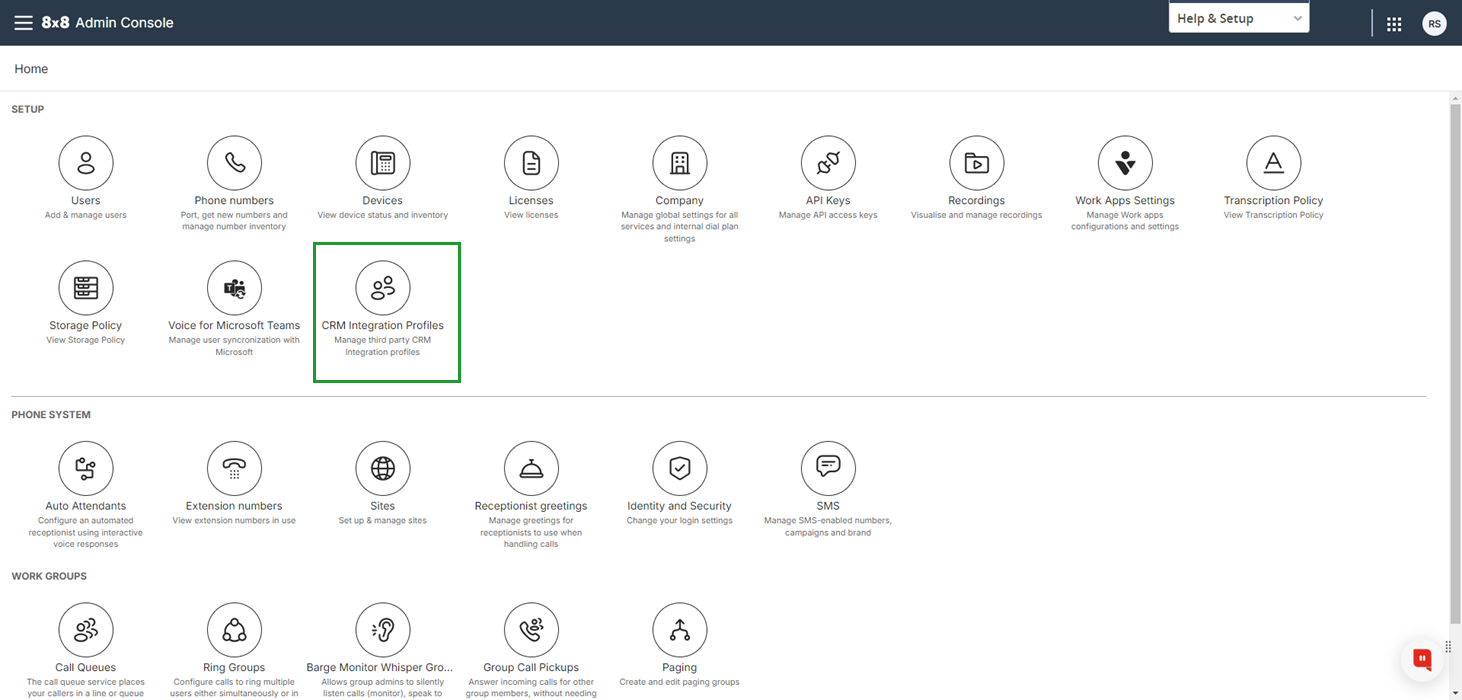
- Log in to 8x8 Admin Console.
- From the Home page, select CRM Integration Profiles.
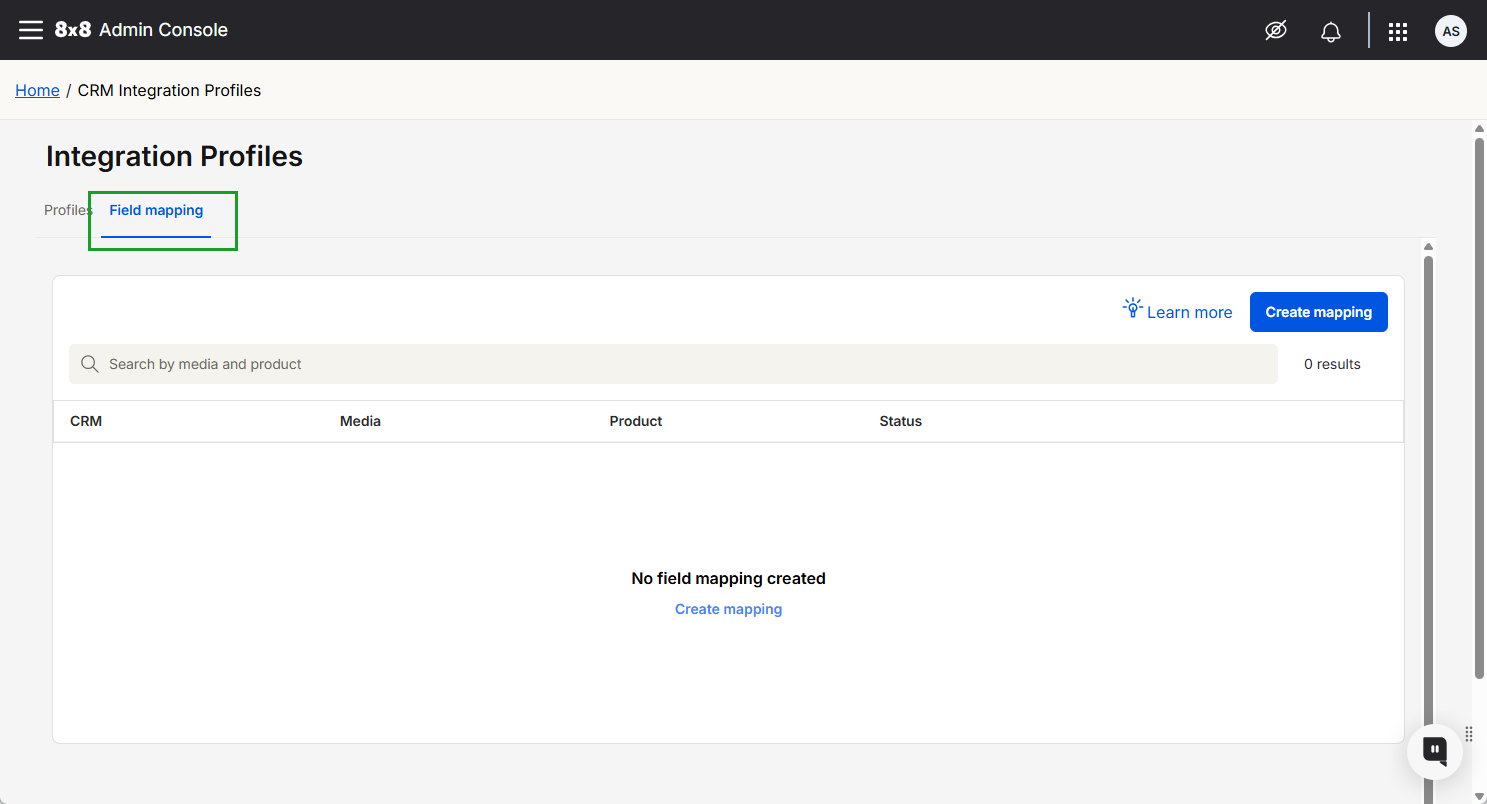
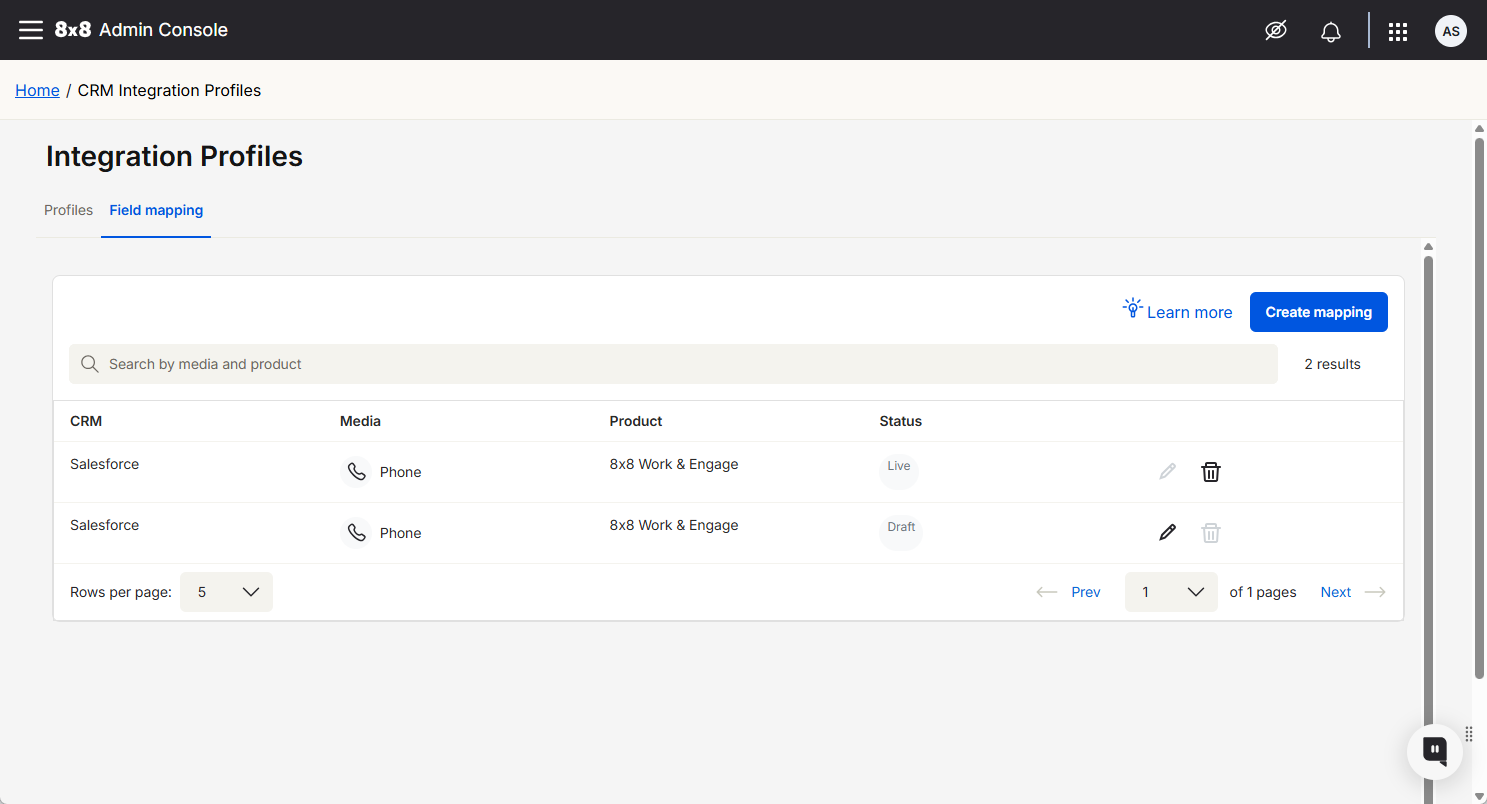
- Select the Field mapping tab.
Create a new mapping
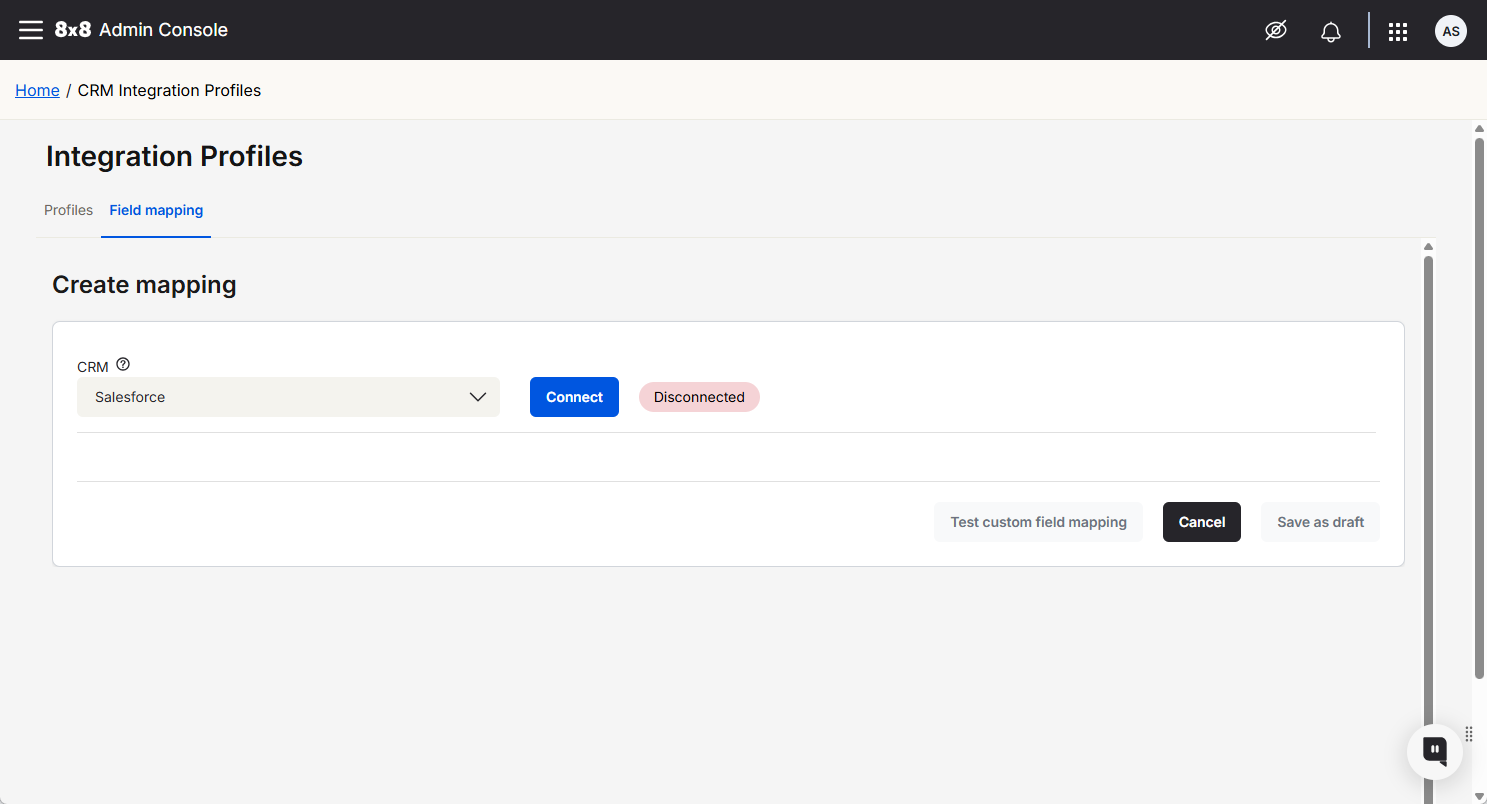
- From the Field mapping tab, click Create mapping.
- From the CRM drop-down list, select a CRM
- Click Connect.
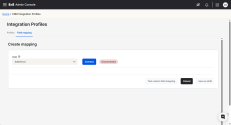
- In the floating window that opens, enter your CRM credentials, then click Log in.
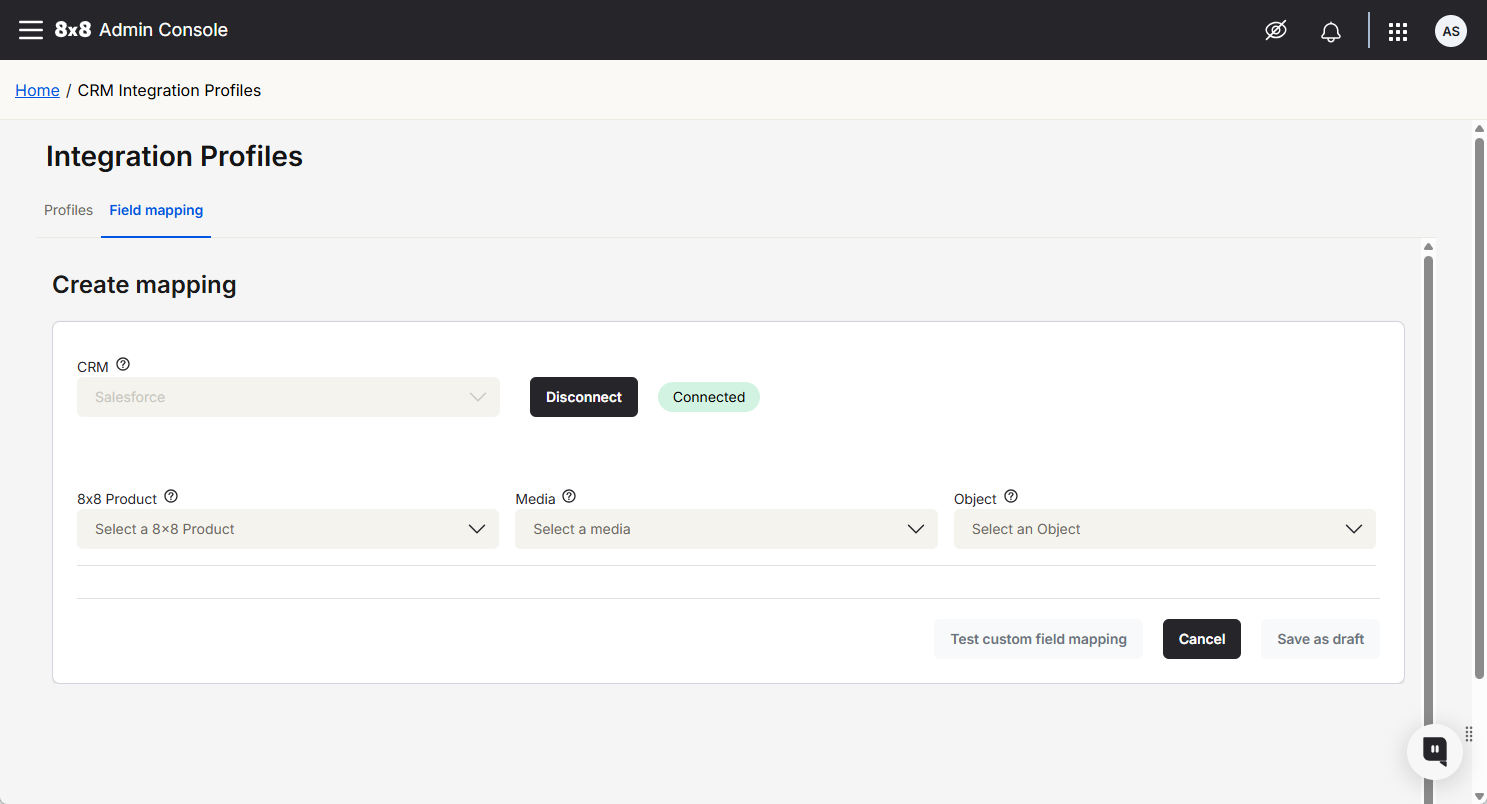
- When the authentication is successful, the status changes to Connected.
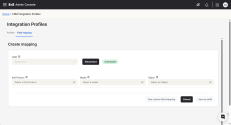
- From the 8x8 Product drop-down, select the product you want to map to:
- 8x8 Work & Engage
- 8x8 Contact Center
- From the 8x8 Media drop-down, select the media type for the mapping.
- From the 8x8 Object drop-down, select the CRM object for the mapping.
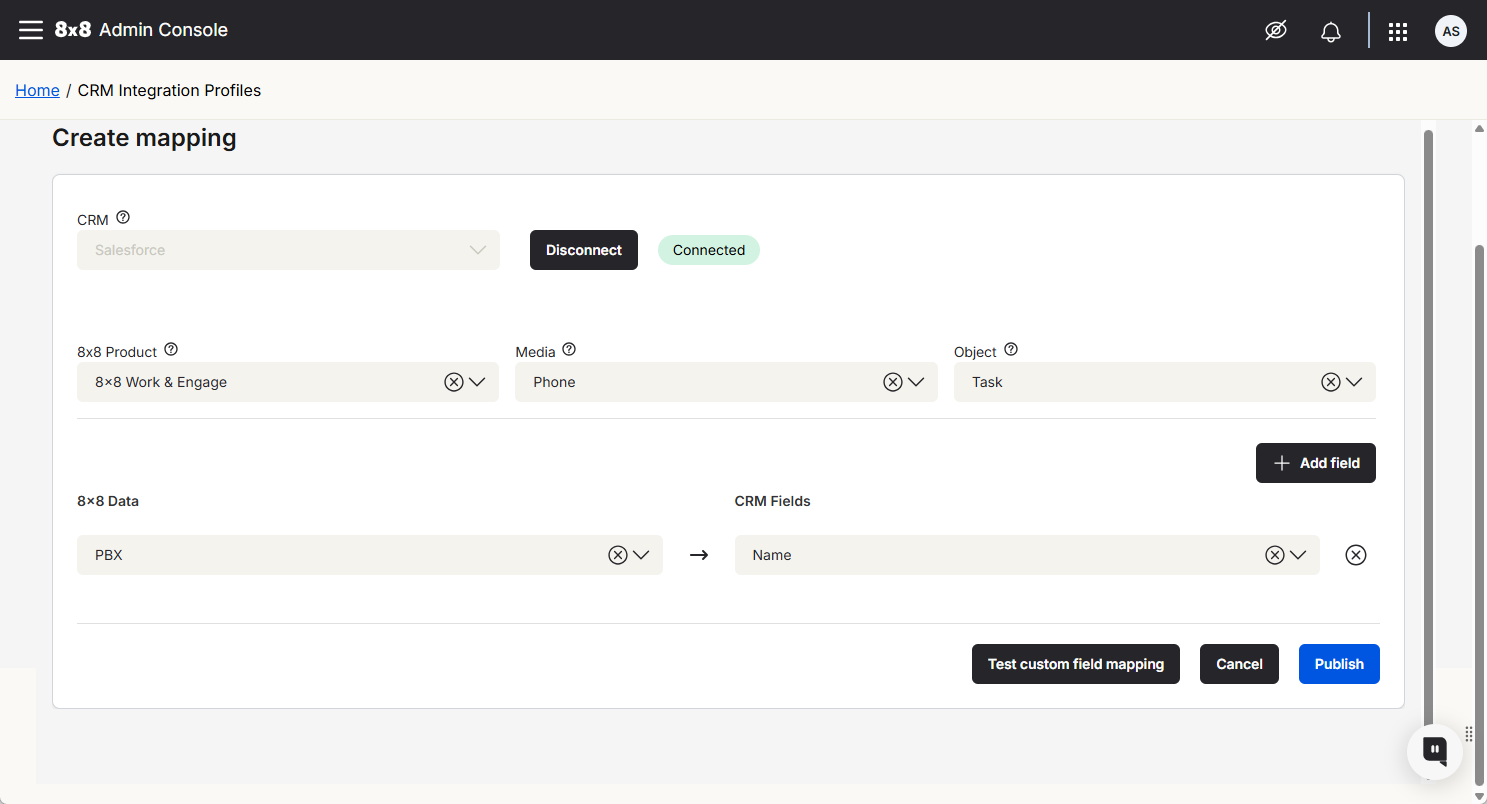
- From the 8x8 Data drop-down, select the interaction log data you want to map.
- From the CRM Fields drop-down, select the field to map the data to.
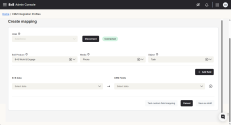
- Click Save as draft. This saves your field mapping changes for later.
- Click:
- Test field mapping: Test the mapping implementation. See Test field mapping.
- Click Publish to implement the field map. This option is only available after saving the field map as a draft.
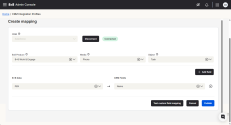
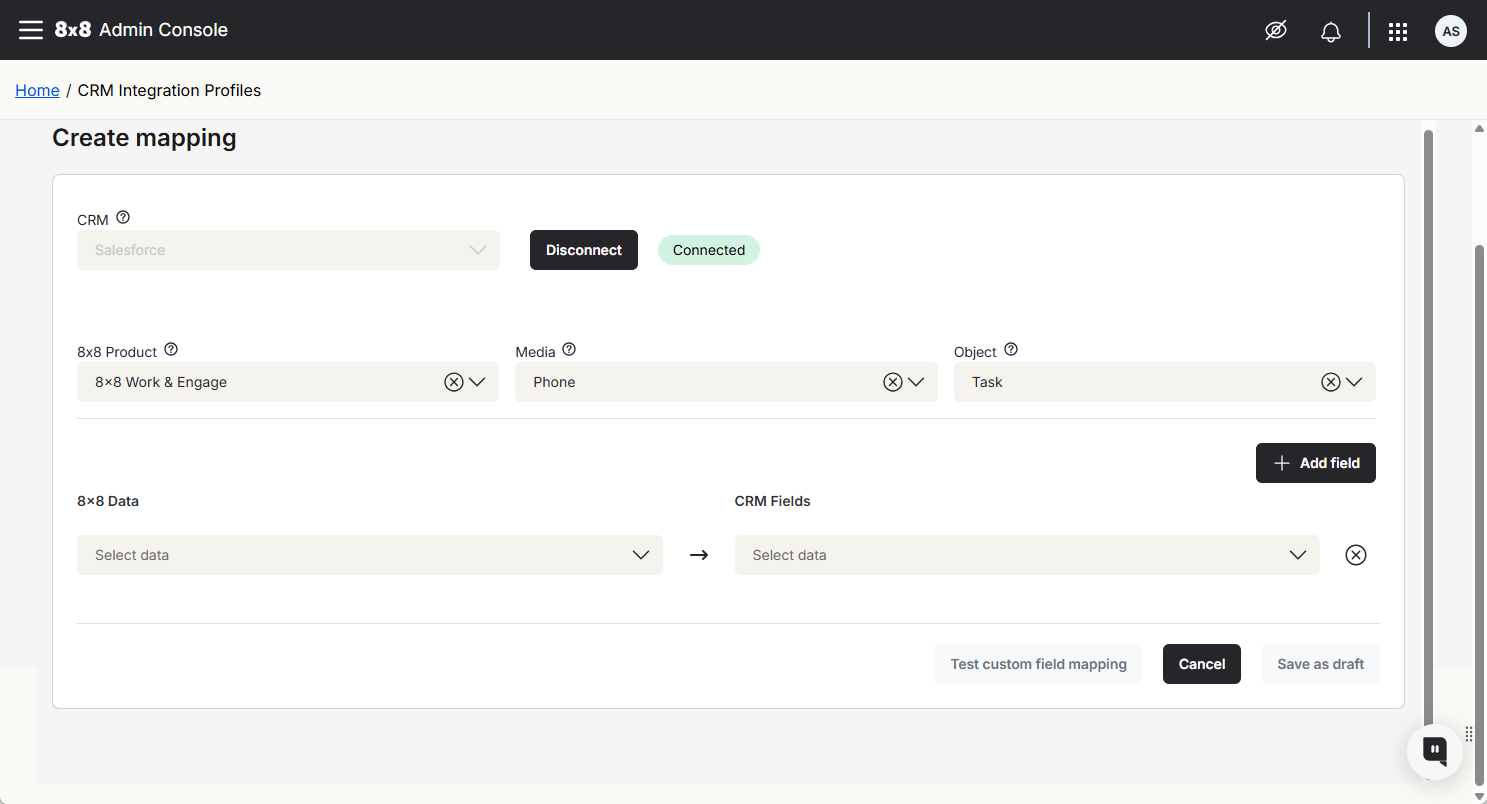
Note: To add a new field, click Add field
Test field mapping
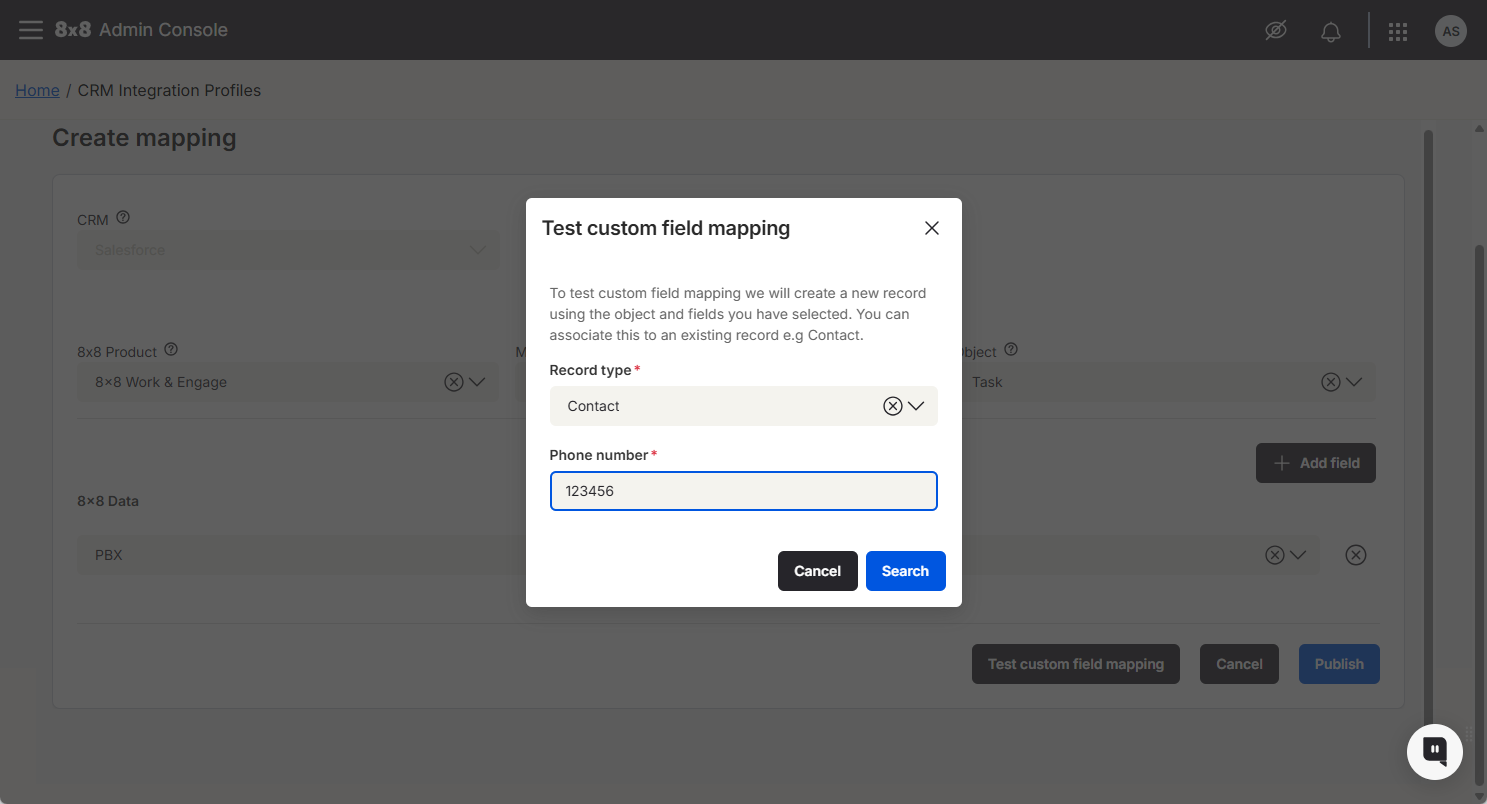
To test field mapping, a new record is created using the object and fields selected. You can associate this with an existing record, e.g., Contact.
To test your field mapping:
- Create a mapping and click Save as draft.
- Click Test custom field mapping.
- From the dialog that opens, select the record type you wish to create the test interaction log against.
- Enter the record type's phone number.
- Click Search.
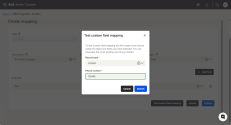
- From the search results, select the record you wish to assign the test interaction log to.
- Click Test.
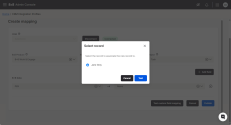
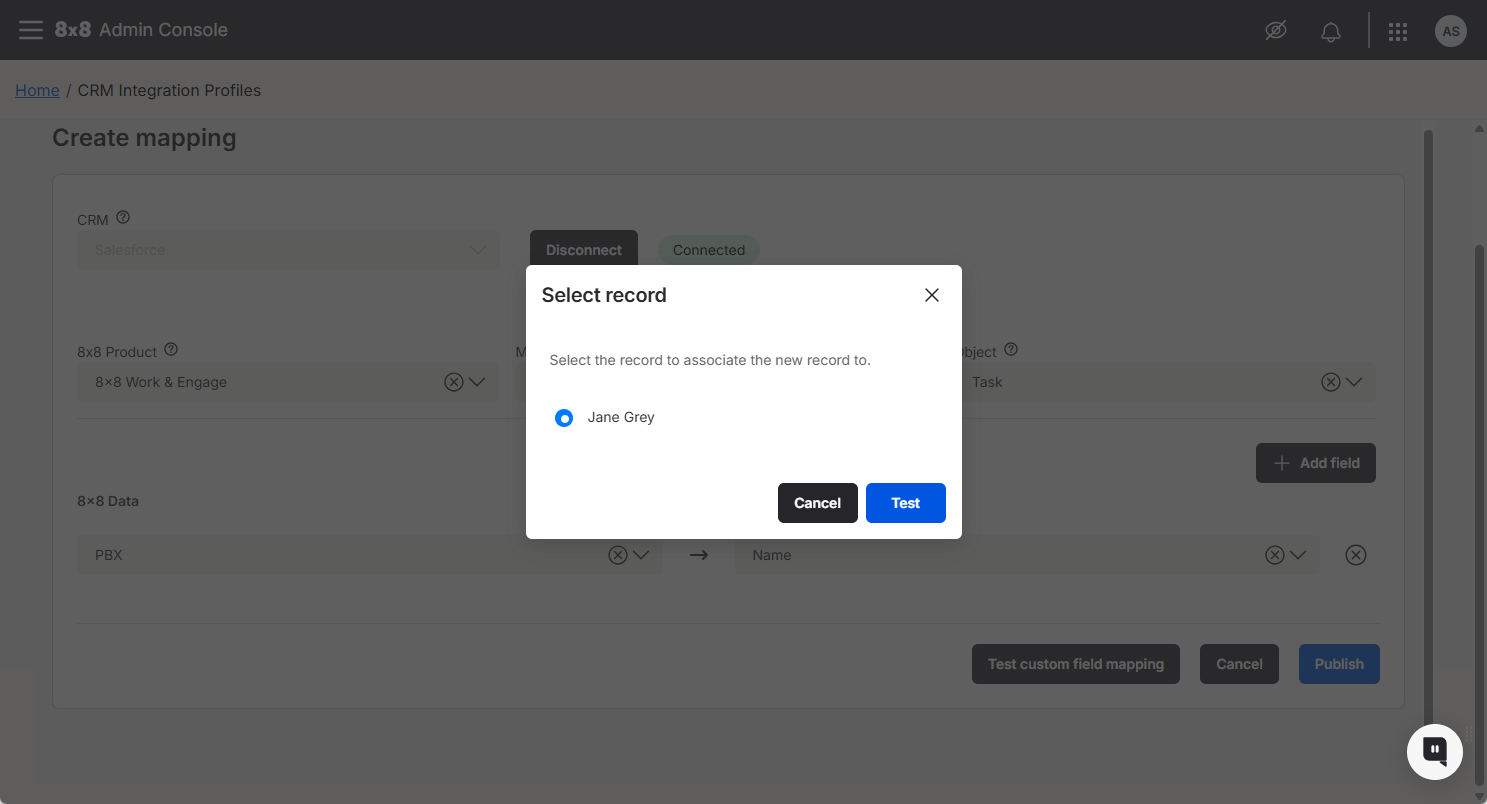
8x8 creates a new record using the object and fields selected and associated with the record type.
Delete field mapping
The Field mapping tab displays all mappings that have been published or saved as a draft.
To delete a field mapping:
- Go to the Field mapping tab.
- Locate the specific mapping row and hover over it.
- Select the Delete mapping
 icon.
icon. - Click Delete to confirm the deletion when prompted.
.
What happens if no custom field mapping is set up?
If no custom field mapping is configured, 8x8 interaction data is placed in the Comments field on the Salesforce Task.


