Configure Work Apps Settings
The Work Apps Settings page in 8x8 Admin Console provides centralized management of all 8x8 Work apps behavoir configurations across Desktop, Web, Mobile, and Engage.
With these controls, administrators can:
- Configure default settings for the entire organization or specific user groups.
- Lock or unlock settings to control what users can change.
- Manage platform-specific features from one location.
This allows flexible control across departments while maintaining consistent global standards.
Why it matters
- Flexibility: Apply different default settings for Desktop, Web, Mobile, and Engage users.
- Granular Control: Customize configurations for departments, or user groups.
- Efficiency: Maintain global defaults while tailoring exceptions for specific policies.
Understanding Profile Policies
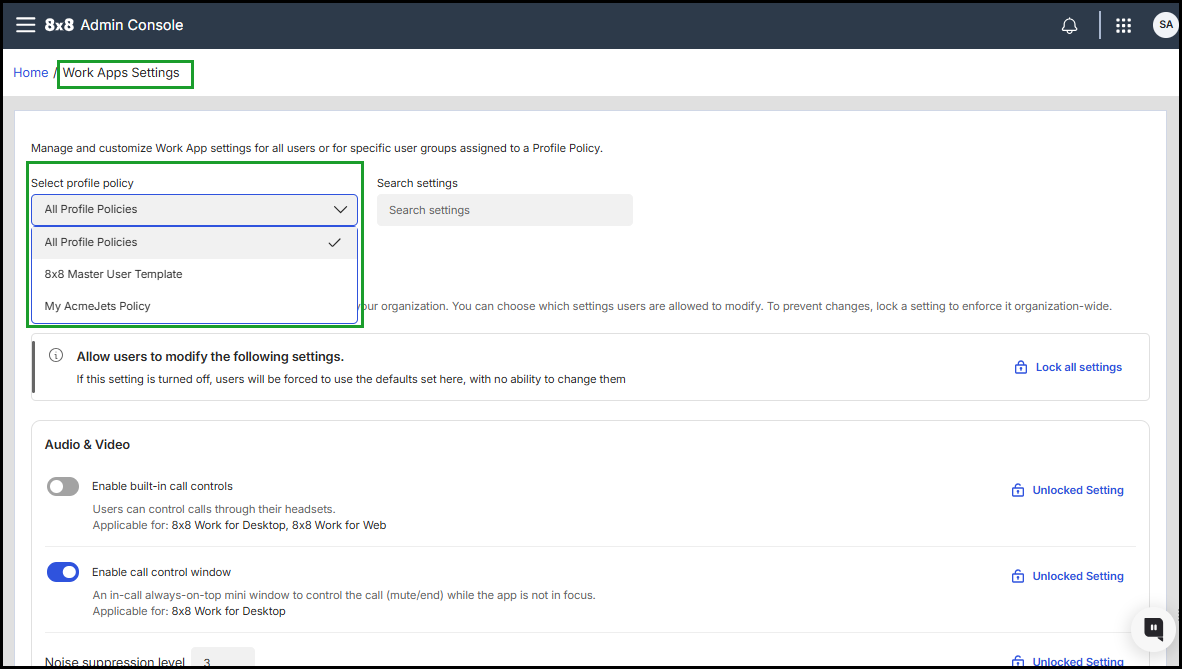
Work Apps Settings uses Profile Policies to determine where configurations apply.
All Profile Policies (default)
- Behavior: Applies settings globally across the organization.
- Typical use: Set global defaults.
Specific Profile Policy
- Behavior: Applies settings only to users assigned to that profile. Overrides global defaults.
- Typical use: Customize configurations for departments or user groups.
Important! Settings applied to a specific Profile Policy always override the All Profile Policies defaults for users in that group.
Key benefits
- Target settings for specific user groups or apply them organization-wide.
- Configure default app behavior across 8x8 Work apps.
- Control key features such as audio and video, caller pop-ups, notifications, status settings, and AI chat.
- Lock configurations to prevent end-user modifications.
- Apply platform-specific features (some available only on Mobile, Desktop, or Engage).
Notes:
- Changes made in Work Apps Settings affect all users under the selected customer.
- Selecting All Profile Policies applies settings globally except to users already configured under individual policies.
 Configuration categories
Each category defines what users can do within their 8x8 Work apps.
Audio & Video
- Enable headset call control.
- Set microphone noise suppression levels.
- Allow minimized “always-on-top” call window.
- Automatically adjust microphone sensitivity (AGC).
Caller Info Pop-Up
- Configure a custom pop-up URL for incoming calls.
- Encode URL parameters in Base64 for privacy.
- Control when the pop-up appears (incoming, internal, or warm-transfer calls)
- Set default caller number format.
- App or web URL for caller info pop-up
Contacts
- Enable contact management in the 8x8 Work for Microsoft Teams integration.
- Sync other Google Contacts in 8x8 Work apps
8x8 Engage
- Allow users to pause their assigned queues.
General
- Allow users to change their profile picture.
- Allow users to view their DID.
- Display ring groups without login/logout control.
- Allow chat AI features.
- Enable Citrix Integration.
- Enable Cross Launch from Teams
-
Allow users to open support cases
- Resolve Ring Group calls against available Contacts.
Mobile-Only Settings
- Allow logout from the app.
- Allow users to set or modify business hours, rate the app, and view their DID (Android only).
-
Allow users to rate the mobile app
Allow users to view their DID
- Allow users to change network type for emergency calls.
- Permit emergency calls over Wi-Fi or switching between Wi-Fi and cellular.
- Display second incoming call minimized.
- Dismiss the call on decline.
- Allow site-specific filtering on transfer.
- Prevent users from logging out of their assigned ring groups.
- Prioritize site-specific filtering on search.
Notifications
- Allow users to change their notifications.
- Allow app start-up sound.
Status & Presence
- Let users set Do Not Disturb or Away statuses.
- Control whether users can change presence messages.
- Set status to Away after (x minutes)
How to configure Work apps settings
- Log in to the 8x8 Admin Console.
- Go to Home > Work Apps Settings.
-
From Select Profile Policy, choose one of the following:
- Choose All Profile Policies to apply settings organization-wide.
- Choose a Specific Profile Policy to customize settings for that group.
-
Adjust the desired default settings for each feature category. For details, see Customize default values for 8x8 Work apps.
Note: You can use the search feature to quickly locate a specific setting.
-
Optional:
-
Click Lock all settings
 to prevent user modifications.
 -
Click Unlock all settings
 to allow custom changes.
 -
Click Restore Default Values to reset policy-specific settings.
-
- Click Save Settings to apply changes.
Notes:
- If no Profile Policy is selected, settings apply to all policies that do not already have custom configurations.
- Changes under All Profile Policies apply globally, except where overridden by individual profile policies.
Priority and override logic
- Settings under a Specific Profile Policy override All Profile Policies for that user group.
- Restoring defaults for a profile re-enables inheritance from global settings.
Example use cases
- Apply different app behavior for Mobile or Engage vs Desktop users.
- Create unique settings for Sales, Support, or Management teams.
- Restrict call controls for internal users while enabling flexibility for field staff.
Configure ring group logout prevention in mobile apps
When administrators enable the Prevent users from logging out of their assigned ring groups setting in Work Apps Settings within the 8x8 Admin Console, it disables the login and logout toggles within the mobile application for all users assigned to the specified profile policy. This configuration ensures team members stay logged into every assigned ring group indefinitely, providing reliable call routing and constant availability.
By default, this feature is turned off, allowing team members to manually control their availability by logging in or out of their assigned ring groups.
Before you begin
Confirm you have access to Work App Settings in the 8x8 Admin Console and the necessary permissions to edit profile policies.
Enable ring group logout prevention
- Log in to the 8x8 Admin Console.
- Navigate to Work App Settings.
- From the Select profile policy list, select the profile policy you want to configure, or select All Profile Policies to set the organization-wide default.
- Under Mobile only settings, enable the Prevent users from logging out of their assigned ring groups toggle.
- Click Save.
The change applies the next time affected users' mobile apps sync with the server. Users may need to restart the app to see the change.
Use profile policies to target specific user groups
This setting supports profile policies, allowing you to apply different configurations to different user groups.
To tailor this configuration for various organizational departments, administrators can use profile policies. For example, you might choose to mandate the logout prevention for general staff while allowing leadership to control their own availability independently.
Policy implementation scenarios
|
Profile Group |
Functional outcome |
|---|---|
| All Profile Policies | Off (standard): Individuals manage their own ring group status |
| Employees | On: Staff are permanently logged into assigned groups |
| Managers | Off: Management maintains manual toggle capabilities |
Lock the setting organization-wide
The All Profile Policies level is unlocked by default to permit specific overrides, administrators can choose to lock the setting. Once locked, the chosen value is enforced across the entire organization, and any policy-specific variations are disregarded.
To mandate a global setting:
- Log in to the 8x8 Admin Console.
- Navigate to Work App Settings.
- From the Select profile policy list, select All Profile Policies to set the organization-wide default.
- Under Mobile only settings, find the Prevent users from logging out of their assigned ring groups option, and select Lock all settings to prevent user modifications.
- Click Save to confirm the changes .
Frequently asked questions
Will users lose visibility of their ring group assignments?
- No. Users still see the list of ring groups they are assigned to in the app. Only the login and logout toggle is disabled when the setting is enabled.
Can an administrator still change a user's ring group login status?
- Yes. Ring group membership and login state can still be managed by administrators from the Admin Console regardless of this setting.
What happens if the setting is enabled for some users but not others?
- Profile policies allow you to target specific user groups. Users on a policy with the setting on cannot see the toggles. Users on a policy with the setting off retain full control.
Does this setting apply to iOS?
- This setting currently applies to 8x8 Work for Mobilefor Android and 8x8 Work for Managed Devices for Android. Contact your 8x8 account team for iOS availability updates.
How quickly does the change take effect?
- Changes take effect the next time the user's mobile app syncs with the server. Users may need to restart the app to see the change.
What if a user is running an older app version?
-
To ensure this setting is enforced, users must be running the minimum supported app versions: 8x8 Work for Mobile version 12.10 or 8x8 Work for Managed Devices version 12.6.5.
Verify that all devices are updated to these required versions before activating the setting, as older versions will not support these restrictions.
Customize default values for 8x8 Work apps
Admins can review which settings each 8x8 Work user can modify or adjust individually:
| Setting | Description | Applicable |
|---|---|---|
| Allow users to modify the following settings |
When this setting is disabled, users cannot modify the default values and can only use the values configured on this page.
To enable users to make their adjustments, click .Unlock all settings |
|
| Audio & Video | ||
| Enable built-in call controls |
Allow users to control calls through their headsets. This setting is disabled by default. |
|
| Enable call control window | Allow a minimized window that stays on top to manage the call (mute/end) while the app is not in focus or minimized. |
|
| Noise suppression level |
Set up the default noise suppression level for the microphone input.
|
|
| Automatically adjust mic sensitivity | When this setting is enabled, the enhanced microphone's Automatic Gain Control (AGC) detects whether someone speaks softly or is positioned far from the microphone. AGC automatically increases the voice level accordingly. |
|
| Caller info pop-up | ||
| Obfuscate macros in param with base64 encoding |
This feature encodes a specific part of the caller info pop-up URL in base64 before displaying it in the system browser. The encoded section corresponds to the value of the 'param' query parameter, which may include macros from the caller info pop-up URL. This functionality ensures privacy by preventing end users from viewing sensitive macro values, such as the caller's name or the callee's number. This setting is disabled by default. |
|
| Pop-up also for internal calls |
8x8 Work displays the app or webpage specified in the URL when an incoming call is received or initiated to an internal caller. Ensure that the Pop-up for outbound calls setting is enabled to allow pop-ups when making a call to an internal contact. This setting is disabled by default. |
|
| Pop-up when incoming call is answered |
8x8 Work displays the app or the webpage specified in the URL when an incoming call is answered. This setting is disabled by default. Note: If the setting is disabled, 8x8 Work displays the app when an incoming call is received. |
|
| Pop-up for outbound calls |
8x8 Work displays the app or the webpage specified in the URL when a call is initiated. This feature applies to both internal and external calls. Ensure that the Pop-up also for internal calls setting is activated to enable pop-ups for internal calls. This setting is disabled by default. |
|
| Pop-up also for warm transfers |
8x8 Work displays the app or the webpage specified in the URL for calls received via warm transfer. This setting is disabled by default. |
|
| Caller number format |
Set up the default caller number format:
|
|
| App or web URL for caller info pop-up |
8x8 Work displays the app or the webpage specified in the URL. To remove a call pop-up, just delete the URL. |
|
| Contacts | ||
| Enable Contacts management in the MS Teams 8x8 Work app |
The new Contacts tab will be displayed in the MS Teams 8x8 Work app when this setting is enabled. This allows users to manage personal contacts or use contacts imported from the 8x8 Admin Console. This feature applies to:
This setting is disabled by default. |
|
| Sync Other Google Contacts in 8x8 Work apps | When this setting is enabled, users can sync both their personal Google Contacts and other Google contacts to the 8x8 Work apps. When disabled, only personal Google Contacts will be synced. |
|
| 8x8 Engage settings | ||
| Allow users to pause their assigned queues |
If this setting is disabled, users will not have the option to 'Pause' their advanced queues. |
|
| General | ||
| Allow users to change their profile picture | If this setting is disabled, users cannot change their profile picture. |
|
| Allow users to view their DID | If this setting is turned off, users will not be allowed to see their DID in their profile. |
|
| Display ring groups without login/logout control |
When enabled, users will see all ring groups in their 8x8 Work for Desktop or Web interface, including those they cannot log in or out When disabled, users will only see ring groups they can actively manage (log in, out out). |
|
|
Allow chat AI features |
Enable users to summarize, rephrase, and receive suggestions in chat conversations using AI. Before activating this feature, ensure you are familiar with the relevant AI regulations in your country. This setting is disabled by default. |
|
| Enable Citrix Integration | Enables automatic Citrix environment detection in Work Web. Users will be prompted by their browser to allow local network access. |
|
| Enable Cross Launch from Teams | This setting enables cross launch from Teams and it disregards any teams licenses |
|
| Allow users to open support cases |
Control whether users can open support cases directly from 8x8 Work. If the setting is turned off, users will not be able to open support cases to 8x8 Support from the Success Center tab |
|
| Resolve Ring Group calls against available Contacts |
Manage how the incoming Ring Group calls and their logs are displayed:
Or
This setting is disabled by default. |
|
| Mobile only settings | ||
| Allow users to logout from the mobile app | If this setting is disabled, users cannot log out of the 8x8 Work for Mobile app |
|
| Allow users to set or modify business hours | If this setting is disabled, users cannot set or change business hours schedules from their 8x8 Work for Mobile app. |
|
| Allow users to rate the mobile app | If this setting is disabled, users cannot rate the app from the 8x8 Work for Mobile app. |
|
| Allow users to view their DID | If this setting is turned off users will not be allowed to see their DID in profile. |
|
| Allow users to change network type for emergency calls | If this setting is turned off users will not be allowed to change the emergency calls network type between Wifi and cellular the 8x8 Work for Mobile app |
|
| Allow users to make emergency calls via WiFi networks |
When this setting is disabled, emergency calls are restricted to cellular networks and cannot be made over Wi-Fi. This setting is disabled by default. |
|
| Display second incoming call minimized |
If disabled, an incoming call displays in full screen while the user is on an active call.
|
|
| Dismiss the call on decline |
When disabled, users can decline a call and stop all logged-in devices from ringing. When enabled, the call is only dismissed from the current device. |
|
| Site-Specific Filtering on Transfer |
When disabled, users see company-wide search results instead of site-specific matching. |
|
| Prevent users from logging out of their assigned ring groups |
If enabled, users cannot log out of their assigned ring groups. By default is Off, and users can toggle ring group login/logout. The default setting is disabled, permitting users to manually manage their ring group login and logout status. To learn more, see Configure ring group logout prevention in mobile apps. |
|
| Prioritize Site-Specific Filtering on Search |
If disabled, users see standard company-wide search results instead of site-specific matches when searching the company directory. |
|
| Notifications | ||
| Allow users to change their notifications | When this setting is disabled, users cannot change their notification settings. |
|
| App start-up sound | Upon launching the 8x8 Work app, users will hear the application's startup sound. |
|
| Status | ||
| Allow users to set Do not Disturb |
When this setting is disabled, users cannot activate the Do not disturb status option. Note: By default, the Allow user to set Do not Disturb setting is enabled. If admins turn off this setting, the DND status and calendar-driven options will be removed from the interface for all users (Profile Page or8x8 Work app taskbar). |
|
| Allow users to change their presence and status message | When this setting is disabled, users cannot change their status message or presence . |
|
| Set status to Away after (x minutes) | If users lock their computer or are inactive (no typing or clicking) for a defined duration, their status will automatically update to Away. |
|


