Handle calls in 8x8 Work for Zoho
With 8x8 Work for Zoho, you can manage calls directly within Zoho. You can transfer calls to other users or queues, start three-way calls, place calls on hold, and record calls.
Important: 8x8 Work for Desktop, Web, or Mobile must be open to handle calls in the integration
About screen pop
During an inbound or outbound call, 8x8 Work for Zoho checks the caller’s phone number and searches the CRM database for a matching record.
When a match is found, the record opens automatically so you can preview key details and prepare for the conversation. This process is referred to as screen pop.
The search may return:
- A single matching record: The record opens via screen pop. The matching record is presented in a new browser tab. A call log opens at the end of the call.
- Multiple matching records: Multiple matching records are found. You must select the correct record from the list. See How to select another record.
- No matching records: No screen pop appears. A call log opens at the end of the call without being assigned to a contact record.
Accept calls
When you receive a call, the integration panel indicates an inbound call. The system looks up a matching record and if a match is found, pops it up for your preview. You can answer the call from 8x8 Work for Desktop, Web, or Mobile, or directly from the call card if you are using a desk phone.
Place calls
All calls use a two-legged call process. When you place a call, it first rings on your 8x8 Work for Desktop, Web, or Mobile, or on your desk phone. After you answer, the system connects the call to the recipient. In addition, you can click-to-dial the phone numbers from a click-to-dial button. See how to use click-to-dial for more information.
You can place calls to your contacts directly from:
- The dial pad in the Phone tab
- The History tab
- Your Contacts tab
Note: If using a softphone, log in to 8x8 Work for Desktop, Web, or Mobile before you initiate a call. You must first answer the call in the app before it dials out to the recipient. If your 8x8 Work extension is assigned with a desk phone, use the call control panel in the application to handle calls.
Use click-to-dial
You can make an outbound call using one click by clicking on a pre-configured click-to-dial button for a Contact, Lead, Account, or Vendor.
The administrator for your account has to set up the click-to-dial feature first before you can use it.
To use click-to-dial in Zoho:
-
Click Contacts (or another object such as Leads or Accounts) from the top navigation bar.
Note: These instructions describe how to use click-to-dial for a contact.
- Select the contact whose number you want to associate with the click-to-dial button.
-
With the Contact (or Lead, Account, or Vendor) screen open, select the button you want to associate the Contact's phone number with from the click-to-dial drop-down list.
Note: The Contact (or Lead, Account, or Vendor) has to have a phone number listed in its file, otherwise you cannot associate it with a click-to-dial button.
- To call the contact, click on the click-to-dial button from the drop-down.
How to select another record
You can match a call to a different record when the current record is not the correct match, or when multiple matching records are available.
To match a call to a different record:
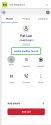
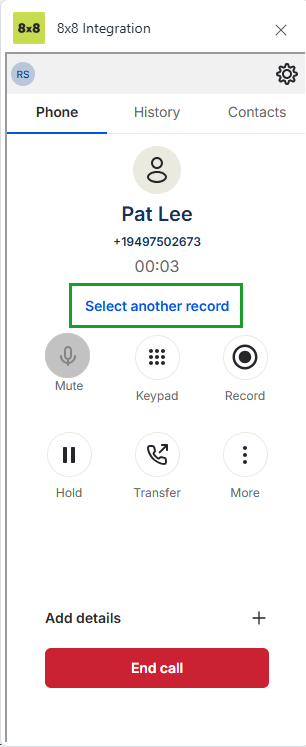
- During a call, click Select another record from 8x8 Work for Zoho.
- Search and select a different record.
Alternatively, if multiple records match the caller, select the correct record from the list to associate it with the call. By default, the first record in the list is associated with the call. - Click x to exit the matching records list.
Hold and resume calls
While on an active call, you can place the call on hold. The other party listens to music while on hold.
- To place a call on hold, click the hold
 icon in the call control panel.
 - To resume the call, click the resume
 icon.
icon.
Add a call and merge calls
With multi-line calling, you can add a call, switch between active calls, and merge calls into a conference.
Note: The ability to make additional calls depends on your 8x8 Work extension. The plug-in supports up to two lines.
To add a third party to an active call:
- While on an active call, click the More
 icon.
icon. - Select + Add call.
- Select a contact, or use the search bar.
Alternatively, click the dialpad icon next to the search bar to type a number.
 - Notify the customer that they will be placed on hold.
- Click the call
 icon or the call button on the dialpad to call. Your extension phone rings first.
 - Accept the call in the 8x8 Work app or on your desk phone. The call now connects to the third party contact.
- Once the call is established, click More > Merge.
- The calls are merged, and the system indicates that you are in a conference call.
- Click End call. This ends the call for all parties on the call.
A new call log opens.
Record calls
You have the flexibility to record calls on demand during a call. You can initiate, stop, and resume recording any number of times during a call.
Note: Call recording is available based on your extension.
To record a call:
- During a call, click record
 icon from the call control panel to begin recording.
 - Click Stop or click the record icon again to stop recording.
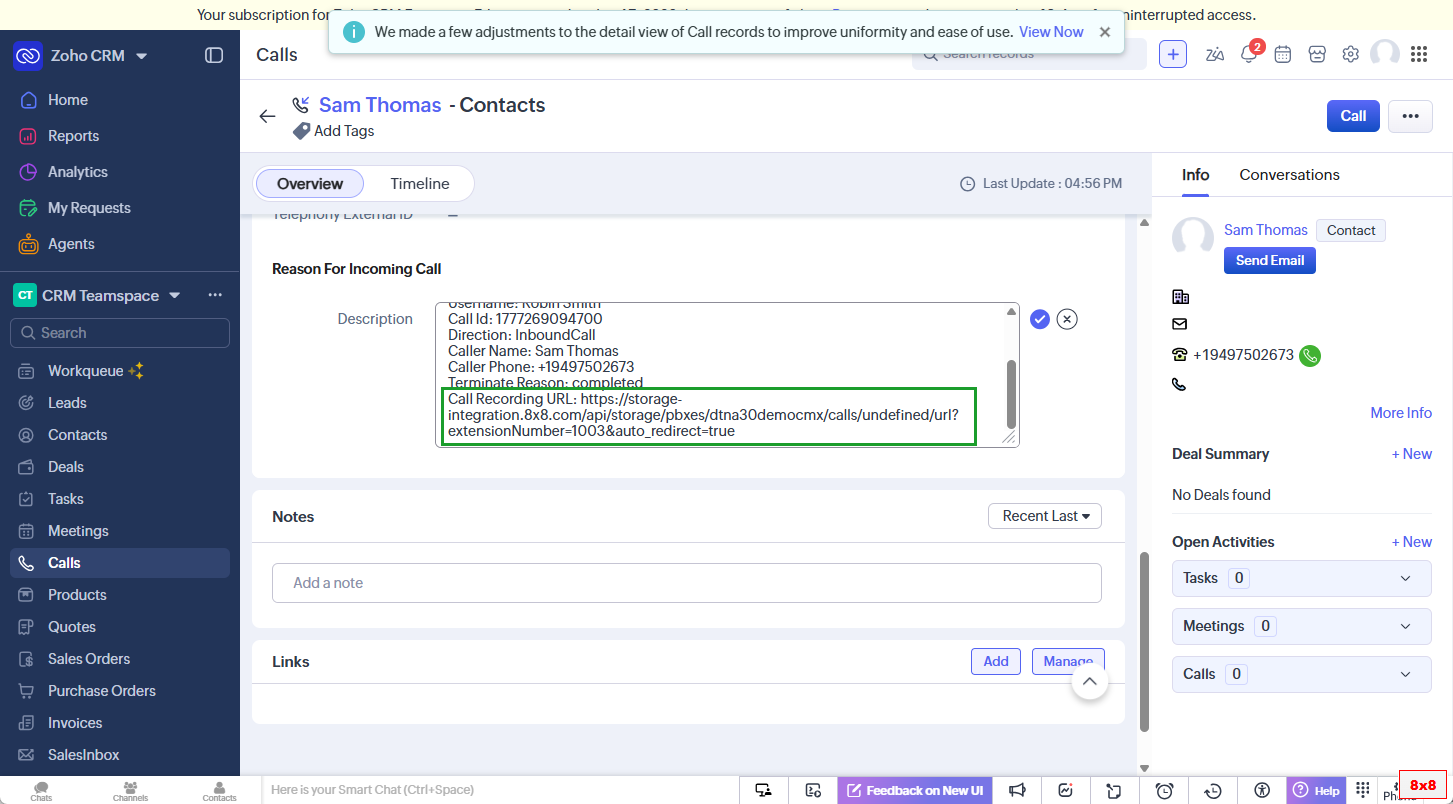
When the call ends, a call record opens with the call recording link listed in the Reason For Incoming Call description field. Copy and paste the link in a new browser tab to download the recording.
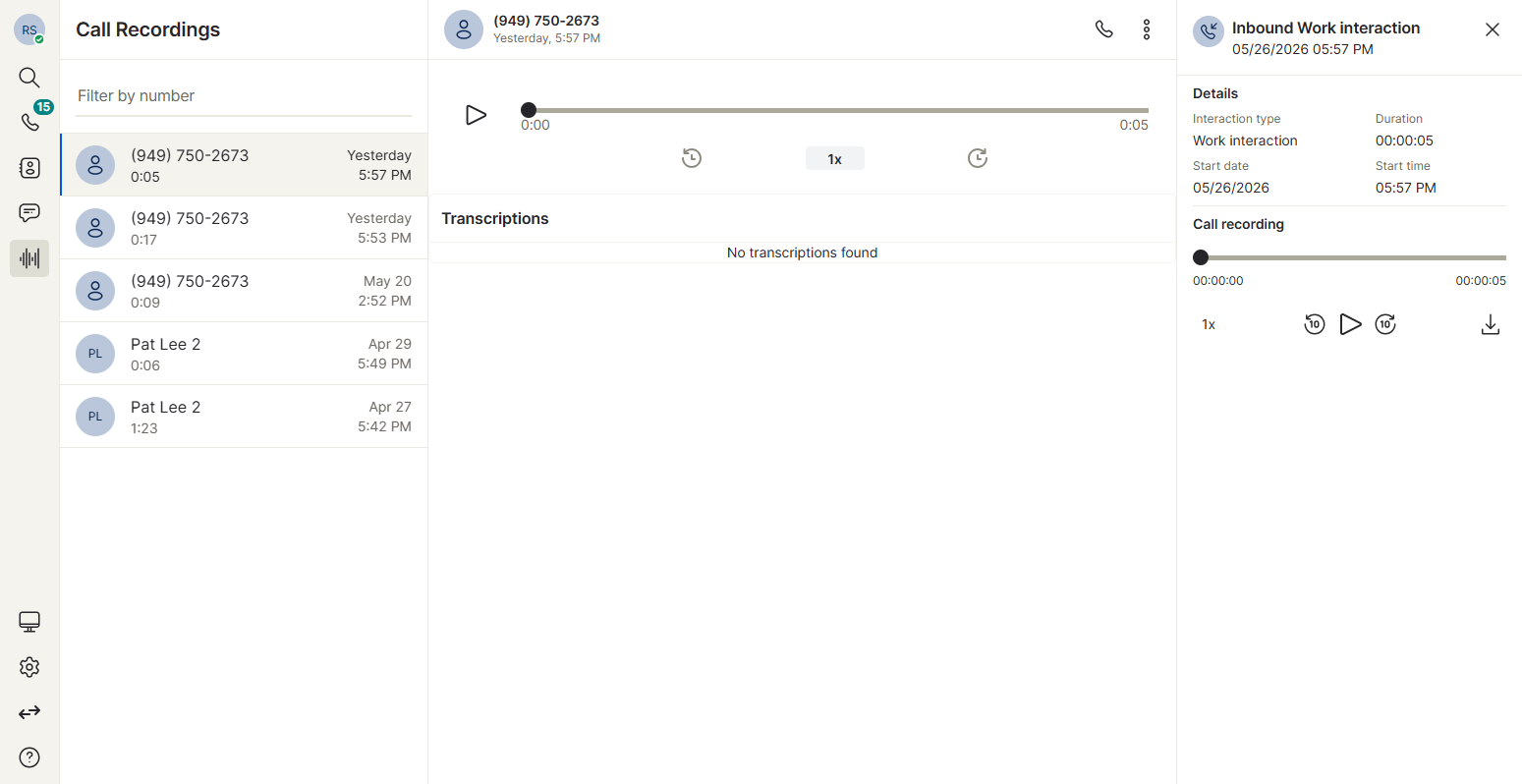
You can also access your call recordings from the Call Recordings menu in your 8x8 Work app.
Transfer calls
You can transfer an active call to another 8x8 Work extension or an external phone number. You can either speak to the recipient before completing the transfer (warm transfer) or transfer the call immediately without speaking to them (cold transfer).
Perform a warm transfer
- While on a call, inform the caller that you will transfer the call.
- From the call control panel, click Transfer.
- Do one of the following:
- To transfer to an internal contact, locate the name in the list or enter the name in the search box. Hover over the contact and click the Warm transfer
 icon.
icon. - To transfer to an external number, click the dialpad icon next to the search bar, then enter the phone number and click Warm Transfer.
- To transfer to an internal contact, locate the name in the list or enter the name in the search box. Hover over the contact and click the Warm transfer
- After the second call connects, click Transfer call.
The call is transferred, and you are disconnected. A call log opens in Zoho.
Perform a cold transfer
- While on a call, inform the caller that you will transfer the call.
- From the call control panel, click Transfer.
- Do one of the following:
- To transfer to an internal contact, locate the name in the list or enter the name in the search box. Hover over the contact and click the Cold transfer
 icon.
icon. - To transfer to an external number, click the dialpad icon next to the search bar, then enter the phone number and click Cold Transfer.
- To transfer to an internal contact, locate the name in the list or enter the name in the search box. Hover over the contact and click the Cold transfer
The call is transferred, and you are disconnected. A call log opens in Zoho.


